How to Take Product Photos With Phone: Apparel Guide
Learn how to take product photos with phone cameras—window light, exposure lock, clean flat-lays, and turning phone shots into 2000px model photos.
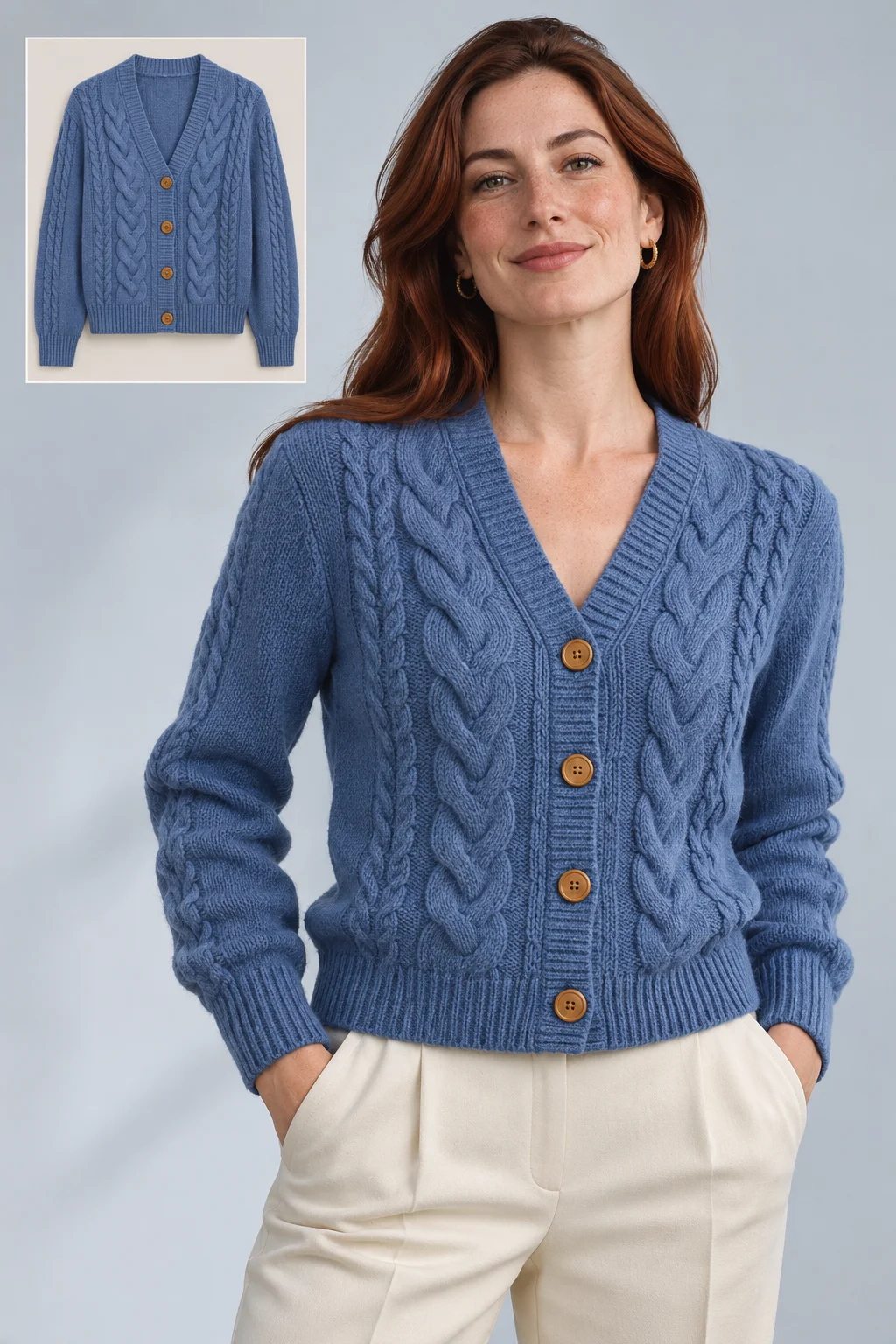
Key Takeaways
- Knowing how to take product photos with phone cameras starts with three free habits: cleaning the lens, using side window light, and turning off overhead bulbs.
- Shooting at 1x or 2x zoom (never 0.5x ultra-wide) prevents garments from warping near the edges.
- You can take a clean smartphone flat-lay and immediately render it onto a studio model using AI Clothes Changer.
You do not need a DSLR camera or a dedicated studio to capture sharp apparel shots. Modern iPhone and Android sensors easily deliver enough resolution for high-end listings—provided you control light direction and camera geometry.
If you want to learn how to take product photos with phone hardware and immediately turn those casual shots into polished store assets via AI Clothes Changer, follow this five-step smartphone setup.
1. Prep Your Smartphone Camera in 30 Seconds
Before setting up your clothes, run through four quick phone adjustments:
- Wipe the camera lens with a microfiber cloth: Pocket lint and fingerprints create hazy haloes around bright whites.
- Turn off the built-in flash: Direct phone flash flattens texture and creates harsh specular glare on buttons, nylon, and leather.
- Enable grid lines (
3×3grid): Grid lines make it effortless to keep hems horizontal and center collars squarely in the frame. - Stick to
1xor2xfocal length: Avoid the0.5xultra-wide lens, which stretches sleeves and skews proportions near the corners.
2. Use Free Window Daylight (and Turn Off Ceiling Lights)
Lighting is 80% of smartphone image quality. Skip expensive ring lights and set up next to a large window during late morning or afternoon:
- Turn off all overhead indoor lights: Warm tungsten ceiling bulbs mixed with cool window daylight create ugly yellow-blue color splits that are hard to fix later.
- Position the garment beside the window (not directly in front of harsh sun): Soft indirect daylight wraps evenly across fabric weave. If sunlight hits directly, hang a thin white sheet or parchment paper across the glass as a diffuser.
- Add a white poster board on the shadow side: Leaning a white cardboard sheet opposite the window bounces light back into pleats, pockets, and collars.
Want to see how smartphone flat-lays fit into a full catalog pipeline? Read our ecommerce product photography checklist.
3. Clean Flat-Lay & Hanger Framing Tips
Whether you shoot on a neutral wooden table, white foam board, or plain wall hanger, keep composition simple:
- Keep the phone completely parallel to the floor: When shooting flat-lays from above, tilt your phone flat rather than at an angle so tops do not look wider at the shoulders than at the waist.
- Tap to lock AE/AF and slide exposure slightly up: Press and hold the garment on screen until AE/AF Lock appears, then nudge brightness slightly brighter for crisp whites without clipping detail.
- Leave breathing room around the garment: Leave 10%–15% margin around sleeves and hemlines so downstream marketplace crops—or AI clothing photography workflows—read the full silhouette cleanly. For deeper overhead styling tricks, see our flat lay clothing photography guide.
Turn Your Phone Photo Into a 2000px Studio Model Shot
Finished snapping your garment on your phone? Drop that photo straight into AI Clothes Changer, pick a model, and preview realistic on-model drape in seconds—no retouching or studio rental needed.
4. Quick Smartphone Editing Without Over-Filtering
Resist heavy Instagram-style filters, which shift fabric hues and create disappointed returns. Stick to three light adjustments inside your phone's native editor:
- Straighten & crop to a clean
3:4or4:5vertical frame. - Lift Shadows slightly (+10 to +15) to reveal pocket seams or dark denim grain.
- Keep Saturation close to zero so reds, greens, and neutrals match the physical garment customers receive.
Once your flat-lay looks accurate on screen, upload it to AI Clothes Changer to instantly generate matching on-model catalog photos ready for your storefront.
Frequently Asked Questions
What phone camera settings work best for clothing and product photos?
Use the main 1x wide lens (or 2x telephoto for less distortion), lock focus and exposure by tapping and holding on the garment, turn off the built-in flash, and shoot in good natural daylight near a window.
How do I avoid yellow or muddy colors when shooting with a smartphone?
Turn off overhead warm room bulbs so they do not clash with cool daylight from the window. Mixed light sources confuse auto white balance and cause uneven color casts across white or pastel fabrics.
Can I turn a phone flat-lay photo into an on-model ecommerce image?
Yes. Shoot your shirt, dress, jeans, or shoes cleanly on a neutral floor or table, then upload the phone photo directly to AI Clothes Changer to generate a clean 2000px on-model preview in seconds.
AI CLOTHES CHANGER STUDIO
Turn Product Photos Into 2000px On-Model Shots
Generate your first virtual try-on preview free without signing in, or batch swap up to 10 garments onto one model and export watermark-free 2000px PNGs.
More Photography & Try-On Guides
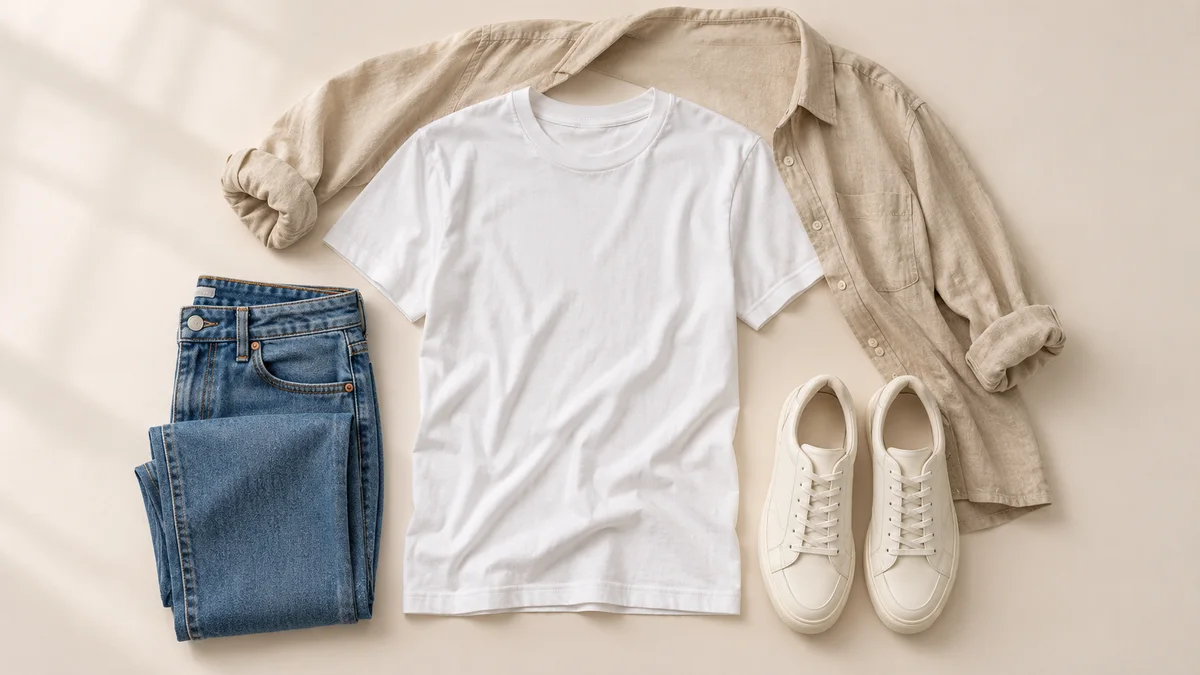
Flat Lay Clothing Photography: Lighting & Styling Guide
Master flat lay clothing photography for Shopify, Depop, and Amazon: surfaces, 90-degree lighting, styling folds, and 2000px on-model AI try-on.
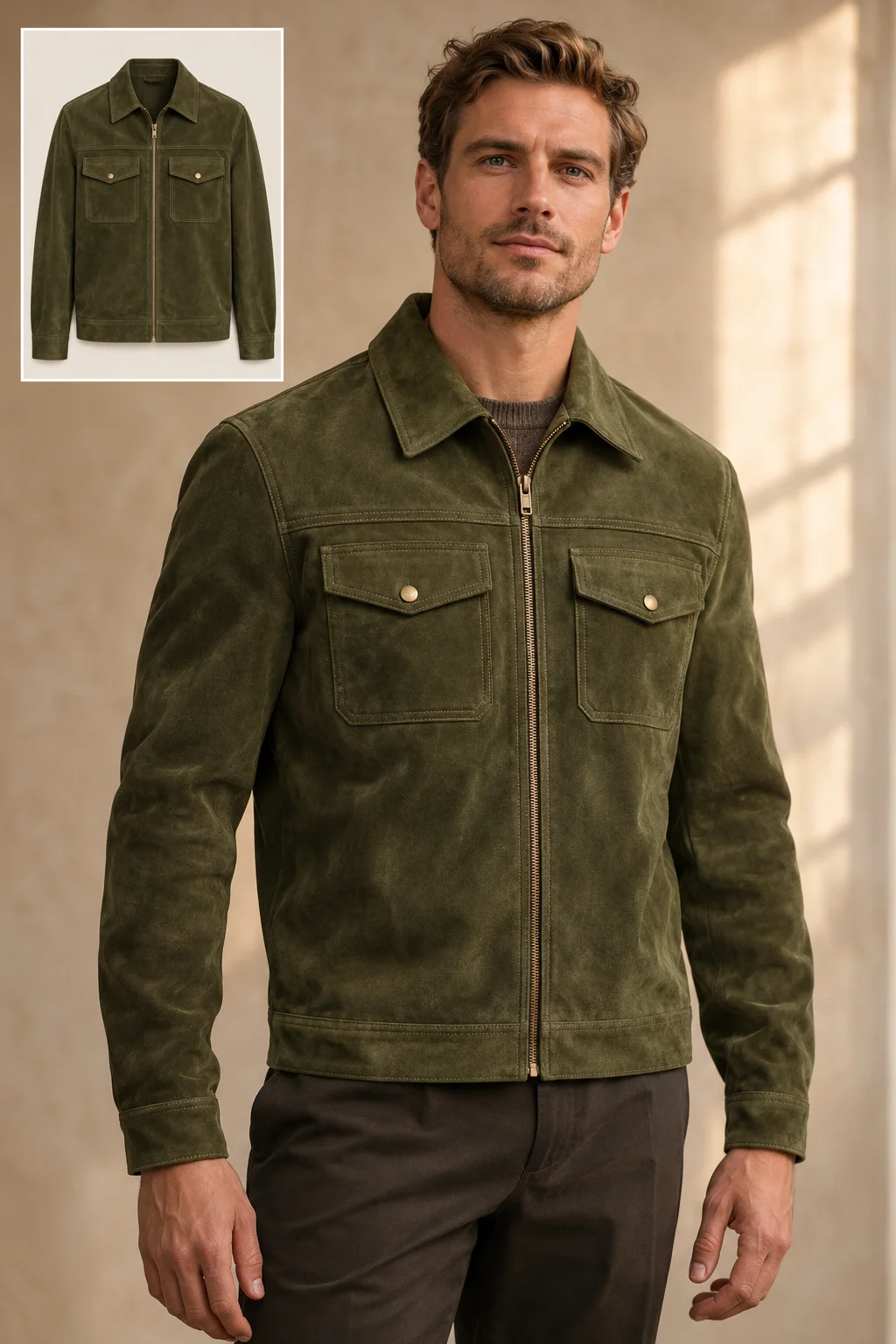
AI Clothing Photography: Scale On-Model Apparel Photos
Discover how apparel sellers use AI clothing photography to turn flat-lays into studio on-model catalogs, batch swap 10 garments, and export 2000px.
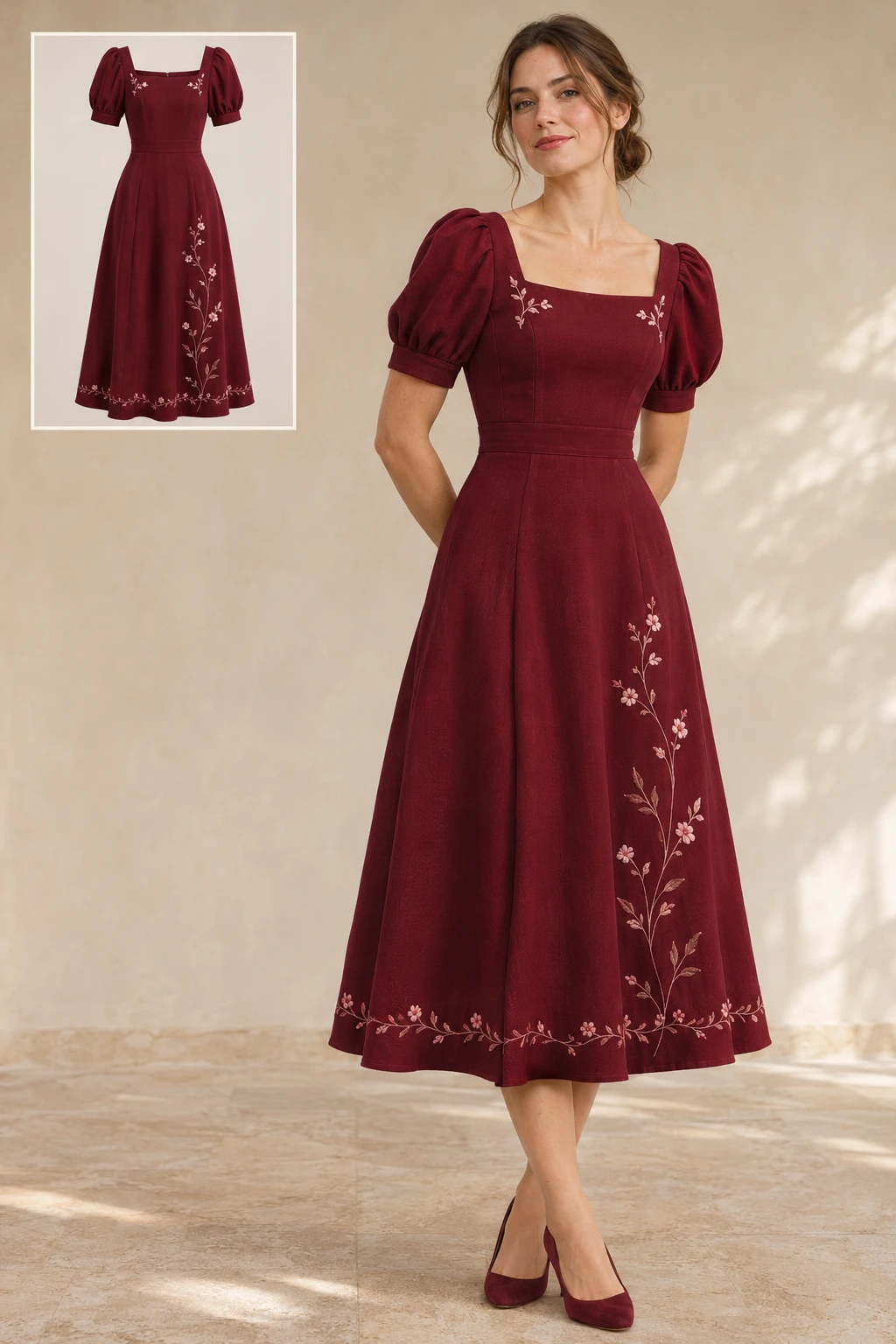
Ecommerce Product Photography: Apparel & Try-On Guide
Plan, shoot, and scale ecommerce product photography for apparel stores—lighting, 2000px marketplace specs, flat-lay tips, and AI try-on workflows.